Windows voice typing not working? Win+H setup and fixes

Written by Futsy, founder at Vibe Typer
You press Win+H, expect words to appear, and get nothing. Or the microphone bar opens, but your sentence lands in the wrong app with missing punctuation. Windows voice typing works well when the pieces line up, yet most failures happen before speech recognition even gets a chance. The cursor may not be in a valid text field, Windows may lack microphone permission, or online speech recognition may be disabled.
The useful way to understand the feature is as a system input method that works across apps. Once you separate Win+H dictation from Voice Access, and permissions from recognition quality, setup and troubleshooting become much more predictable.
Table of contents
- What Windows voice typing is and when to use it
- How Windows voice typing evolved
- Setting up Windows voice typing
- Commands and voice typing in practice
- When third-party voice typing tools help
- Fixing common Windows voice typing problems
- Choosing the right voice typing setup
What Windows voice typing is and when to use it
The first test is simple. Open Notepad, click inside the blank page, press Windows logo key + H, and wait for the small voice-typing bar to appear. Start speaking, and Windows sends the recognized words into the text field that currently has focus. Microsoft describes this as speech-to-text input launched with Windows logo key + H or the microphone button on the touch keyboard in its Windows voice access FAQ.
That system-level behavior is the important part. Windows voice typing can work in Word, Outlook, a browser, an email composer, a form, a chat box, or another supported text field, provided the cursor is active and Windows can use the selected microphone.
It also has clear boundaries. Win+H dictation captures live speech and places text where you're typing. It doesn't act as a voice assistant, transcribe audio files or replace keyboard shortcuts. You'll still want the keyboard or mouse for many corrections, window changes, and precise formatting tasks.
Where dictation earns its place
Voice input helps when your hands are occupied, typing is uncomfortable, or speaking produces a more natural first draft. Good starting tasks include:
- Email replies: Speak a short response straight into the reply box.
- Forms and search boxes: Fill ordinary text fields without moving between keyboard and mouse.
- Drafting documents: Get ideas down quickly, then edit the result with normal text tools.
- Accessibility: Reduce dependence on physical typing where voice input is more practical.
Windows now presents two related choices. Win+H Dictation focuses on putting spoken words into a text field. Voice Access is broader, adding commands for controlling the PC as well as dictating text.
How Windows voice typing evolved
Windows speech input began as a recognition utility and developed into a broader set of input and accessibility tools. Microsoft introduced dictation in the Windows 10 April 2018 Update. Users could place the cursor in a text field, press Win+H, and speak, as described in Microsoft's Windows 10 dictation announcement.
The history matters because Windows now separates two jobs. In Windows 11, voice typing is the renamed default entry point for Dictation. Win+H dictation sends spoken words into the active text field, while Voice Access adds commands for controlling the computer. Microsoft says Voice Access is available in Windows 11 version 22H2 and later, with setup under Accessibility and Speech, as explained in its Voice Access setup documentation.
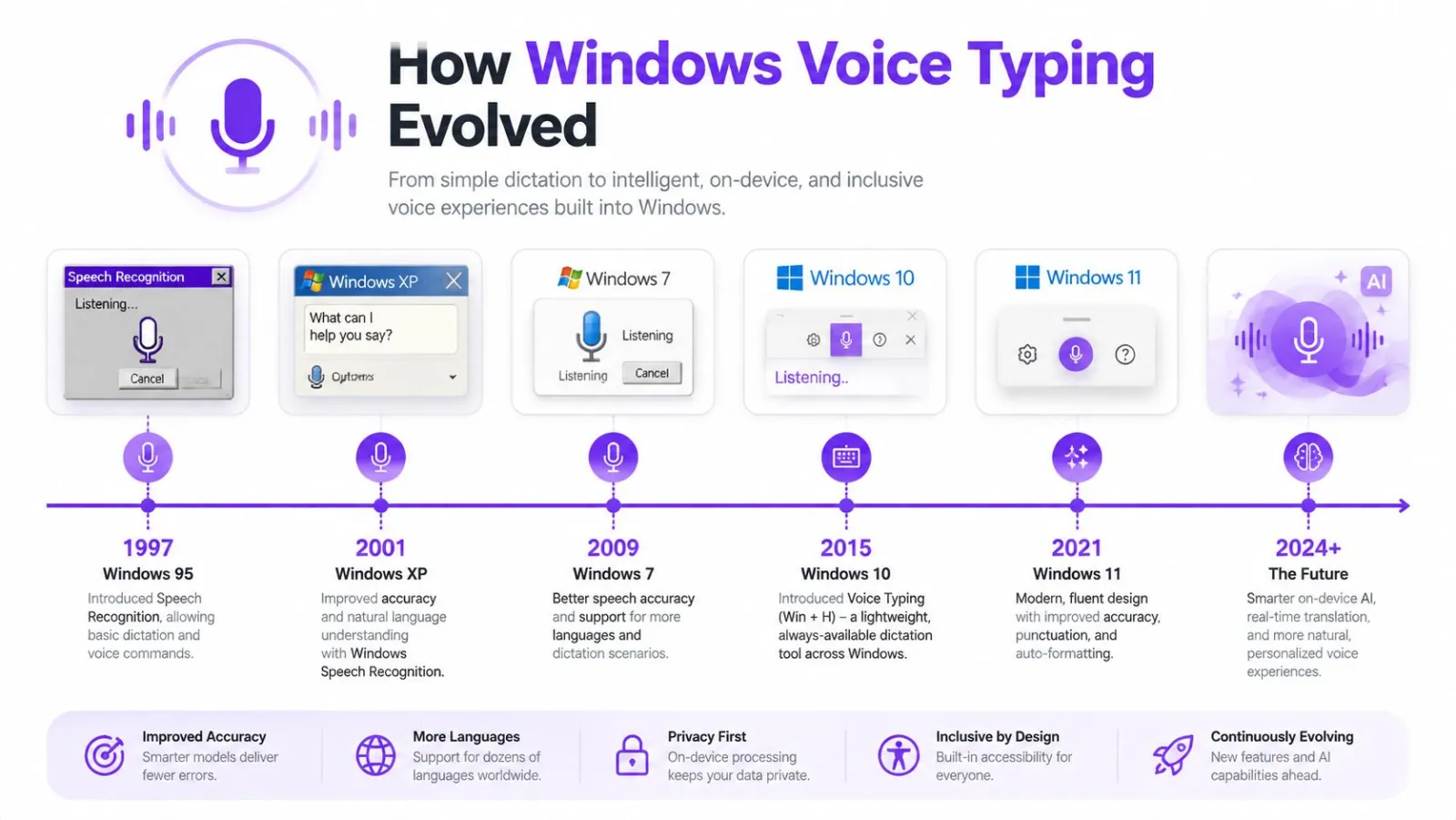
Dictation and Voice Access are different tools
Win+H works like a live keyboard input method. Click a text field, start the overlay, speak, and Windows inserts the recognized words at the cursor. It suits messages and paragraphs, but it does not make every part of Windows voice-controlled.
Voice Access works at the system level. It can select controls, open and switch windows, scroll, and interact with the desktop. Its dictation commands can also format text, so it fits hands-free workflows more closely than Win+H.
Practical rule: Use Win+H when the task is "put these words in the box." Use Voice Access when the task is "open, select, scroll, and type without touching the PC."
The technical requirements differ as well. Windows voice typing uses online speech recognition. Microsoft describes Voice Access as using modern on-device speech recognition that can work without an internet connection in its speech and privacy guidance. So when nothing happens at all, look at microphone permissions, online speech settings and the focused text field first. The two tools look related, but they do not behave the same way.
Setting up Windows voice typing
Start with the microphone, because Windows can't recognize speech from a device it can't access. On Windows 11, open Settings, select Privacy & security, choose Microphone, and confirm that Let apps access your microphone is enabled. On Windows 10, it's Settings, then Privacy, then Microphone, and the switch is Allow apps to access your microphone. Check the desktop-app microphone permission on the same page if that option appears.
Next, turn on Online speech recognition. On Windows 11, open Settings, select Privacy & security, and choose Speech. On Windows 10, it's Settings, then Privacy, then Speech. Win+H depends on it because the feature converts speech to text through online recognition. If you leave it off, the shortcut may open without producing the expected result.
Match the language and microphone
Under the speech settings, choose a language that matches what you're speaking. Microsoft lists 46 language and locale options for Windows 11 voice typing, including English variants, French, German, Japanese, Simplified and Traditional Chinese, Spanish, Portuguese, and Indian languages such as Hindi, Gujarati, Marathi, Tamil, and Telugu, as shown in Microsoft's Windows 11 language support discussion.
A headset microphone usually gives Windows a cleaner signal than a laptop's built-in microphone, particularly in a room with fans or nearby conversation. If you use several audio devices, open Settings > System > Sound and confirm that Windows has selected the microphone you intend to use. For more hardware ideas, compare options in this microphones for dictation guide.
Now click inside Notepad or another simple text editor and press Win+H. If the dictation bar appears, speak one short sentence and watch for text. A quick test separates setup problems from app-specific problems before you trust the feature with a long email or document.
Voice Access has a separate launch path under Settings > Accessibility > Speech. It may ask for microphone permission and offers an optional interactive tutorial, which is useful because its command vocabulary is broader than the Win+H overlay. The voice automation guide has more background on voice-driven setups.
Commands and voice typing in practice
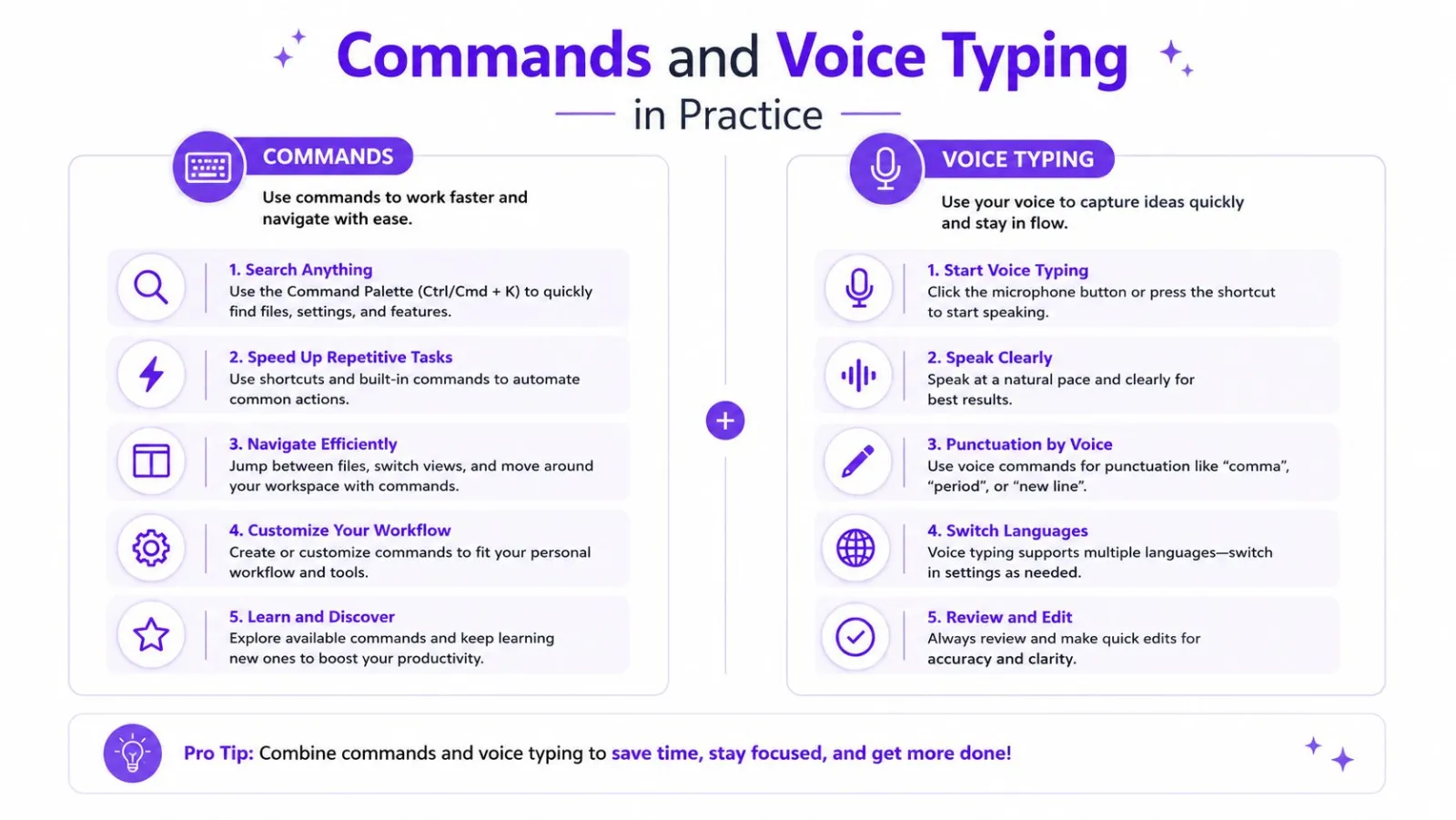
Suppose you're replying to a colleague. Click the message box, press Win+H, and say, "I've reviewed the document and can send comments this afternoon." Windows inserts the sentence into the active field. If one word is wrong, use the mouse to click near that word and correct it normally. Voice typing speeds up composition, but it doesn't remove the need to review what you wrote.
Punctuation can be spoken directly. Say "comma," "question mark," or "exclamation mark" when you want those marks inserted. Microsoft also documents "Period," "Dot," and "Decimal point" as punctuation commands in its Windows speech recognition command reference.
Three command groups
The practical commands fall into a few useful groups:
- Punctuation: Say "comma," "colon," "question mark," or "exclamation mark."
- Layout: Say "new line," "new paragraph," or "tab" to move through a draft.
- Editing: Commands such as "select that" and "delete that" can help revise recent text, especially in Voice Access workflows.
For example, you might say, "Please send the revised file, comma, and let me know if you have questions, period, new paragraph, I'll follow up tomorrow." The result depends on the application and the active voice feature. A plain text field may accept the words as input, while Word or Outlook may interpret line breaks and rich-text behavior differently.
Microsoft documents automatic punctuation as a configurable Voice Access option. Open the Voice Access bar, go to Settings, choose Manage options, and turn on automatic punctuation if you want Windows to add punctuation without hearing every mark as an explicit command, according to Microsoft's dictation instructions.
Built-in punctuation tends to behave more consistently when online speech recognition is enabled. Voice Access may also interpret command phrases more reliably than the older dictation overlay because it's designed for both text entry and control.
When third-party voice typing tools help
Built-in Windows voice typing handles short messages in ordinary text fields. A dedicated application earns its place when your workflow depends on specialized vocabulary, long-form cleanup, app-specific behavior, or more control over how spoken drafts become finished text.
Consider a technical writer who frequently dictates product names, commands, and jargon. A custom dictionary can reduce repeated corrections. A multilingual writer may need more than the 46 language and locale options Windows voice typing lists, and a developer may want to speak prompts into a terminal tool such as Claude Code or Codex. This dictation software guide for Windows compares the dedicated apps.
Vibe Typer is the dedicated app to try first. Press a global hotkey and speak, and the text lands in any app, terminals included. Magic Formatter, our own model built just for cleaning up dictation, strips filler words and self-corrections and sets punctuation, paragraphs and lists before the text lands, on every plan, and a self-learning dictionary keeps names and jargon right. It can also rewrite text you've selected or reply to a message you've copied, all by voice.
| Windows voice typing (Win+H) | Vibe Typer | |
|---|---|---|
| Cost | Included with Windows | Free plan, Pro $8 a month billed annually |
| Where it types | Supported text fields | Any app, terminals included |
| Cleanup | Spoken or automatic punctuation | Magic Formatter removes filler words and self-corrections and fixes punctuation |
| Style | As spoken | Tone presets |
| Rewrite and reply by voice | No | Yes |
| Languages | 46 language and locale options | 99 languages |
| Audio | Online speech recognition | In memory, no recordings or transcripts on our servers |
Vibe Typer runs alongside Windows voice typing and leaves your Windows settings as they are. Download Vibe Typer and try it on your next email.
Fixing common Windows voice typing problems
When Win+H appears to do nothing, start with permissions before you look at pronunciation. Microsoft's troubleshooting guidance points users toward the microphone, speech language, quiet surroundings, and the requirement that the cursor sit inside a valid text field in its voice typing troubleshooting guide.
Check the three failure points
Permissions
- Open Settings > Privacy and security > Microphone.
- Confirm microphone access and desktop-app access are enabled.
- Go to Settings > System > Sound and select the correct input device.
- Test the microphone in another application if Windows still receives no audio.
Context
- Click directly inside the target text field.
- Look for a blinking cursor.
- Try Notepad to determine whether the original app is the problem.
- Confirm the speech language matches the language you're speaking.
- Check that Online speech recognition is enabled for Win+H.
Compatibility
Electron-based apps such as Discord and Slack can behave differently from standard Windows text controls. Browser fields, Remote Desktop sessions, and virtual machines may also interfere with focus or audio routing. If dictation works in Notepad but not in one of these environments, the recognition engine probably isn't the main issue.
Most "nothing happened" reports describe a blocked input path. Windows may be listening to the wrong microphone, waiting for a valid text field, or prevented from reaching its speech service.
Microsoft Q&A discussions also surface hidden blockers such as disabled online speech recognition, disabled microphone access for desktop apps, blocked speech services, and enterprise policies. A work-managed computer may deliberately restrict speech features, so contact your administrator if the relevant controls are unavailable or keep reverting.
Recovery steps
Try the following in order:
- Restart the target app: Close and reopen it after changing microphone or speech permissions.
- Toggle recognition: Turn online speech recognition off and on as a diagnostic step, then test again.
- Refresh language resources: Reinstall the relevant language pack if recognition behaves incorrectly for one language.
- Clear speech data or cache: Use the available Windows speech and language settings to remove stale recognition resources, then restart.
- Test a clean field: Use Notepad before investigating a complicated editor, remote session, or virtual machine.
These steps target the path between your voice, Windows, and the focused field, and they'll tell you whether the fault is local to the PC or specific to the workflow.
Choosing the right voice typing setup
Your goal should determine which Windows voice feature you launch.
| Your goal | Start with | Why |
|---|---|---|
| Quick emails, searches, and chats | Win+H Dictation | It focuses on placing spoken words into the active text field |
| Hands-free desktop navigation | Voice Access | It combines dictation with commands for controlling the PC |
| Long-form writing, custom vocabulary or terminals | Vibe Typer | Magic Formatter cleans each draft, a self-learning dictionary keeps your terms, and it types in any app |
| Managed work computer | Approved Windows feature or IT guidance | Organization policies may restrict speech services and permissions |
Windows 10's major built-in dictation entry point is Win+H. Windows 11 adds the broader Voice Access mode, with support documented for version 22H2 and later in Microsoft's Voice Access feature guide.
Quick answers
Why is Windows voice typing not working? Usually one of three things blocks it: Windows can't use your microphone, Online speech recognition is off, or the cursor isn't in a text field. Work through the three failure points, then test Win+H in Notepad.
How do I turn on voice typing in Windows 10 and 11? Turn on Online speech recognition in Settings, allow microphone access, click in a text field and press Win+H. On Windows 11 version 22H2 and later, Voice Access is a separate feature under Settings, Accessibility, Speech.
What can I use when Windows voice typing won't work in an app? Vibe Typer. Press a global hotkey and speak, and it types into any app, terminals included, with filler words and self-corrections cleaned up. It covers 99 languages. Audio is processed in memory, with no recordings or transcripts on our servers. Free to start, no card.
Does Windows voice typing work offline? Win+H dictation uses online speech recognition. Microsoft separately describes Voice Access as using modern on-device recognition that can work without the internet, so don't treat the two modes as interchangeable.
Can I use multiple languages? Windows 11 supports broad language and locale coverage, including the languages listed earlier. Choose the matching speech language before testing.
Why does it fail in a game or Remote Desktop? Games often don't expose ordinary text fields, while Remote Desktop and virtual machines can disrupt focus or microphone routing. Test locally in Notepad first.
Is my microphone always listening? No. Win+H starts dictation when you launch it, and it doesn't act as a general voice assistant. Review Windows microphone permissions and stop dictation when you're finished. Vibe Typer works the same way: it starts recording when you press your hotkey and stops when you press it again.
Vibe Typer brings voice typing to any app on Windows, terminals included, with Magic Formatter cleanup, a self-learning dictionary, and AI rewrite and reply by voice. Download Vibe Typer and dictate your next message with it. Free to start, no card.
Try Vibe Typer free
Voice typing that works in every app on Linux, Windows, Mac, iPhone and Android. Free to start, no card needed.
Download free