Voice Typing on Google Docs: A Practical 2026 Guide

Written by Futsy, founder at Vibe Typer
You've opened a blank Google Doc, placed the cursor where the first paragraph should go, and reached for the keyboard. Then you remember voice typing. The feature can turn a rough idea into text quickly, but it can also leave you correcting punctuation, chasing a lost sentence, or wondering why the microphone stopped listening.
That's the practical reality of voice typing on Google Docs. Native dictation is useful, especially for quick drafts and hands-free writing, but it isn't the same as a complete voice-first writing system. Browser permissions, document format, connectivity, language, formatting, and the amount of editing you need all affect the result. This guide treats voice input as a workflow choice, with Google Docs dictation as one point on the spectrum and dedicated tools as an off-ramp when the native experience becomes a bottleneck.
Table of Contents
- A Quick Look at How Voice Typing Actually Feels
- Turning On Voice Typing Inside Google Docs
- Speaking Punctuation and Editing Commands Out Loud
- Where Native Voice Typing Starts to Break Down
- Comparing Docs Dictation and a Dedicated Voice Tool
- Setting Up Vibe Typer as a Voice Layer for Docs
- Troubleshooting Checklist and Picking the Right Path
A Quick Look at How Voice Typing Actually Feels
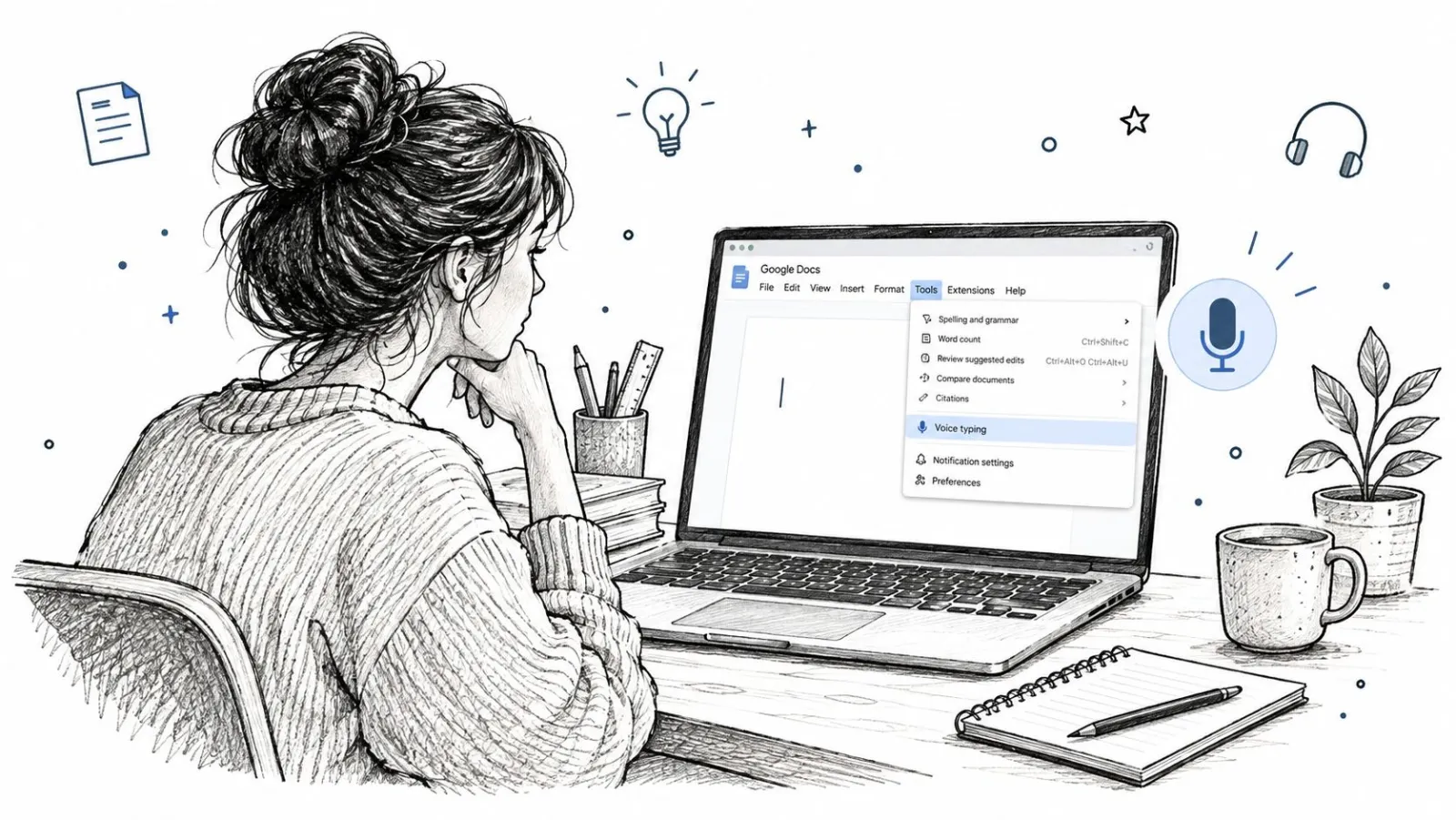
The first moment is strangely satisfying. The Tools menu is open, the cursor blinks in an empty document, and the room is quiet except for the low hum of a fan. You choose Voice typing, click the floating microphone, and wait through a short pause. Then your words begin appearing on the page without your hands moving.
A clear run feels fast because speaking lets you keep an idea moving. You can describe an outline, explain a problem, or draft a personal note with your eyes on the document. The microphone widget stays over the page as a constant reminder that Docs is listening, and the live signal changes when dictation is active.
The friction usually arrives in the middle of a paragraph. A phrase disappears. A proper name becomes a common word. You say a formatting command and Docs types it as plain words. The result can still be valuable, but the workflow changes from “speak and move on” to “speak, inspect, and repair.”
Practical rule: Use native Docs dictation to get ideas onto the page, then judge it by the cleanup it creates.
Google introduced voice typing on the web in 2015, then expanded it in February 2016 with voice commands for editing and formatting as well as dictation (Google Workspace Updates). The capability has also become less tied to Chrome. Google announced expanded support for browsers including Edge and Safari in May 2024, extending access beyond the earlier Chrome-focused experience (Google Workspace Updates on additional browsers).
The rest of the decision is practical. If you're drafting a short shared document, native voice typing may be enough. If you need consistent formatting, app-wide insertion, or reliable handling of technical language, a dedicated voice layer such as Vibe Typer is the pick.
Turning On Voice Typing Inside Google Docs
Start with a native Google Doc on a desktop browser. Open Tools, choose Voice typing, and look for the microphone box that appears beside the document. Google's documentation places the feature in this menu and notes that microphone permission is required before dictation can begin (Google Docs voice typing help).
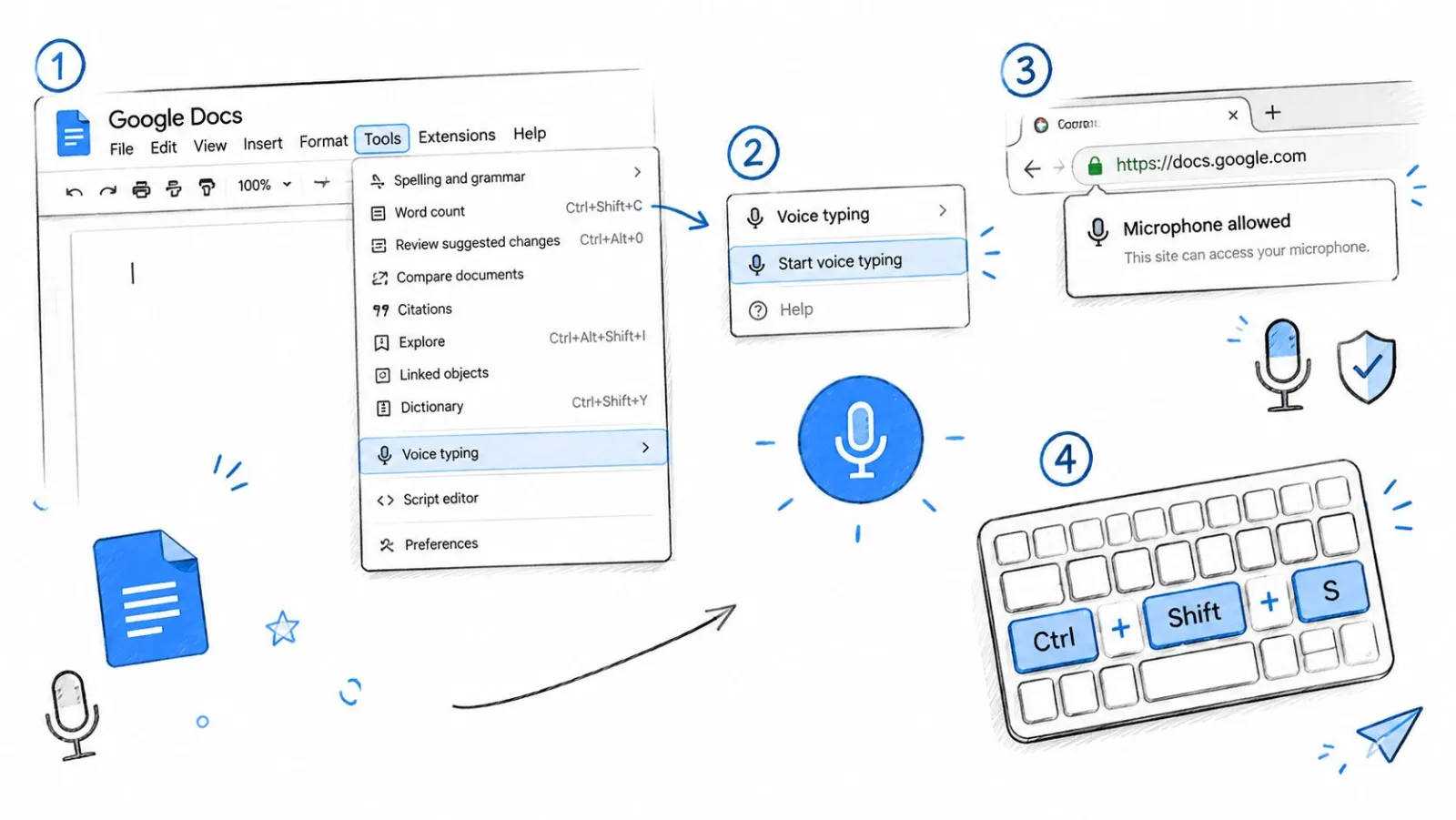
The first time you activate it, your browser may ask to use the microphone. Choose Allow. If you blocked access earlier, select the lock or site-permissions icon beside the address bar, change microphone access, and reload the document. You can also inspect the selected input device at chrome://settings/content/microphone, where Chrome lets you check both permission status and the microphone it will use.
Google's help says voice typing works in the latest versions of Chrome, Edge and Safari. On a phone, people generally use the dictation key on the phone's keyboard. Whichever browser you use, test it in the document you depend on, because a menu showing up doesn't guarantee a stable session.
What the microphone box tells you
The floating widget has three controls worth learning:
- Microphone button: Click it to start or stop listening. A visible active state confirms that Docs is capturing speech.
- Language selector: Choose the language or regional variant before speaking. Google's supported list includes English variants such as US, UK, India, Canada, Australia, Ireland, New Zealand, Philippines, and South Africa, along with languages including Arabic, Bengali, Chinese, German, Hindi, Japanese, Korean, Portuguese, Spanish, Tamil, Turkish, and Vietnamese (Google's language support documentation).
- Input signal: Watch for the live microphone indication. If it doesn't respond while you speak, check the selected device and operating-system permission before troubleshooting transcription quality.
Microphone placement matters more than many new users expect. Keep the input close enough to capture a steady voice, but avoid aiming directly at a fan, speaker, or keyboard. ClearAudio's guide to vocals microphone placement tips is useful if your recordings sound distant, clipped, or full of room noise.
Once the microphone works, try a short sentence before dictating a full page. That small test confirms the active language, permission, input device, and cursor position without risking a long paragraph.
On supported desktop setups, the shortcut is Ctrl+Shift+S on Windows or Command+Shift+S on macOS after Voice typing is available. The shortcut is a convenience, so still check the widget. If a browser update, extension, or managed-device policy interferes, the menu and microphone state provide the clearer diagnostic signal.
Speaking Punctuation and Editing Commands Out Loud
Voice typing produces better prose when you stop expecting it to infer every punctuation mark. Say the punctuation as part of the sentence. For example, dictate “The meeting starts at nine period” to finish with a full stop, or “Can you send the draft question mark” to produce a question mark.
The core commands are simple:
- Period or full stop: Ends a sentence.
- Comma: Adds a pause within a sentence.
- Question mark: Finishes a question.
- Exclamation point: Adds emphasis.
- New line: Moves the cursor to the next line.
- New paragraph: Starts a separate paragraph.
Google Docs also recognizes spoken editing and formatting commands, although the practical command set is more limited than keyboard and mouse editing. You can try phrases such as “select last sentence,” “delete previous word,” “bold,” “italics,” “underline,” “undo,” and “redo.” Commands work best when you speak them clearly and pause briefly between the text you want to keep and the instruction you want Docs to interpret.
Practice with a short paragraph like this:
“Project update period new paragraph The prototype is ready for review comma but the documentation still needs work period new paragraph Please check the setup steps and send feedback by Friday period”
The intended result is two paragraphs with a comma after “review” and full stops at the sentence endings. If Docs types the command words as text, stop listening, delete the unwanted text, and try again with a slightly longer pause before the instruction.
Where commands become less dependable
Commands are not a replacement for cursor control. “Select last sentence” may work for a clean, recent sentence, but it won't give you the same precision as dragging across a specific clause. Complex nested lists, tables, links, and mixed formatting still tend to be easier with the mouse or keyboard.
Spoken formatting commands only work in English, so they won't help if you're dictating in another language or switching languages within the same document. Accents and similar-sounding words can cause a command to be interpreted as content. For a broader command workflow, see the Vibe Typer AI voice commands documentation.
The useful habit is to separate drafting from fine editing. Speak the paragraph and its major breaks, then use conventional controls for detailed cleanup. If every sentence requires a correction, your workflow may need a voice tool designed to clean and insert text more broadly.
Where Native Voice Typing Starts to Break Down
Native dictation usually shows its limits in recognition quality, response timing, and document context. A quiet room and a short draft can make the feature feel reliable. A technical document, noisy workspace, or comment-heavy file reveals the trade-offs much faster.
Recognition depends on more than how clearly you speak. One test ran Google Docs Voice Typing on 127 real-world engineering meeting clips full of technical jargon and overlapping speech. Read its benchmark methodology and results as a warning about workload fit.
Accuracy is only one pressure point
Technical vocabulary, names, homophones, background noise, and disfluencies all increase cleanup. “Their” and “there” can sound right while being wrong in context, and a missing phrase may be harder to spot than an obvious typo. A separate comparison involving learner speech reported average English transcription accuracy of about 56.16% for Google Docs voice typing, with results changing substantially by task type (speech-to-text comparison and punctuation discussion).
A clean-looking sentence count does not guarantee a usable draft. Missing or misplaced punctuation affects scanning, revision, and meaning. For client-ready work, schedule a deliberate review pass before you treat the transcription as final copy.
The failure signal is repeated interruption to repair words, punctuation, and paragraph structure while your idea is still forming.
Latency varies with the connection as well. Testing under constrained network conditions found different trade-offs when round-trip time reached at least 120 milliseconds, as alternative transcription paths fell back to server-side speech recognition.
Document context creates another set of problems. Switching tabs can move focus away from Docs, comments can crowd the editing area, and mixed-format files may behave differently from native Google Docs. Check microphone permissions, browser support, and file format before assuming every failure is an accuracy issue. Mac users can also use RewriteBar dictation setup tips to check input and permission settings.
Stop adjusting settings when the microphone repeatedly drops, ordinary speech produces missing words, the cursor lands in the wrong place, or work depends on a stable connection. Those symptoms point to a workflow decision: keep native Docs dictation for straightforward drafting, or add a broader voice layer such as Vibe Typer when browser-only input creates more repair work than it saves.
Comparing Docs Dictation and a Dedicated Voice Tool
Google Docs voice typing and a standalone desktop tool such as Vibe Typer solve related problems through different operating models. Docs keeps dictation inside the document. A dedicated tool listens through its own interface, processes the speech according to its configuration, and inserts text into the application that currently holds the cursor.
That distinction matters if you draft in Docs but also write in email, chat, a code editor, or a terminal. It also matters if you want cleanup, custom vocabulary, or a processing model that isn't tied to one browser tab. Broader context about key uses of AI voice assistants can help when you're deciding whether voice should remain a dictation feature or become a wider input layer.
Docs Dictation vs Vibe Typer
| Dimension | Docs Dictation | Vibe Typer |
|---|---|---|
| Where it works | Inside Google Docs through a supported browser | In Google Docs and other applications where the cursor accepts text |
| Activation | Tools > Voice typing, then the microphone widget | Hotkey-based recording with hold-to-talk or toggle modes |
| Formatting | Spoken punctuation and selected voice formatting commands | Automatic text insertion with formatting behavior that can adapt per application |
| Cleanup | Primarily transcription with spoken corrections | Magic Formatter, our own model, can remove filler, apply self-corrections, and set paragraphs and lists |
| Language coverage | Google documents a broad set of languages and regional variants | Supports 99 languages with optional automatic language detection |
| Privacy model | Browser and Workspace-based processing | In memory, no recordings or transcripts on our servers, and nothing trains on user audio or text |
| Operating systems | Browser-dependent, with desktop and browser compatibility considerations | Linux, Windows, macOS, iPhone, and Android |
| Editing visibility | Standard document editing | Diff view shows changes between spoken words and final text |
| Best fit | Quick drafts, shared Docs, and occasional hands-free writing | Cross-application dictation, richer cleanup, Linux workflows, and users who want configurable insertion |
Native Docs dictation stays inside the document you have open. When your work moves between applications, or formatting and cleanup take as long as speaking, Vibe Typer is the pick.
Privacy deserves a careful read. Docs users should understand that browser-based dictation depends on the Google Workspace environment. Vibe Typer processes audio in memory, with no recordings or transcripts on its servers. Before using any voice system for sensitive material, check it against your organization's requirements.
Language and accent coverage can also shift the choice. Google Docs lists many languages and regional variants, while Vibe Typer supports 99 languages and optional automatic detection. Test the terms, names, and switching patterns from your own work. A language list tells you a mode exists. A test tells you how much editing your document will need.
Setting Up Vibe Typer as a Voice Layer for Docs
Vibe Typer types into Google Docs the way it types into any app: you speak, and clean text lands at your cursor. It runs on Linux, Windows, Mac, iPhone and Android, with native Wayland and X11 support on Linux.
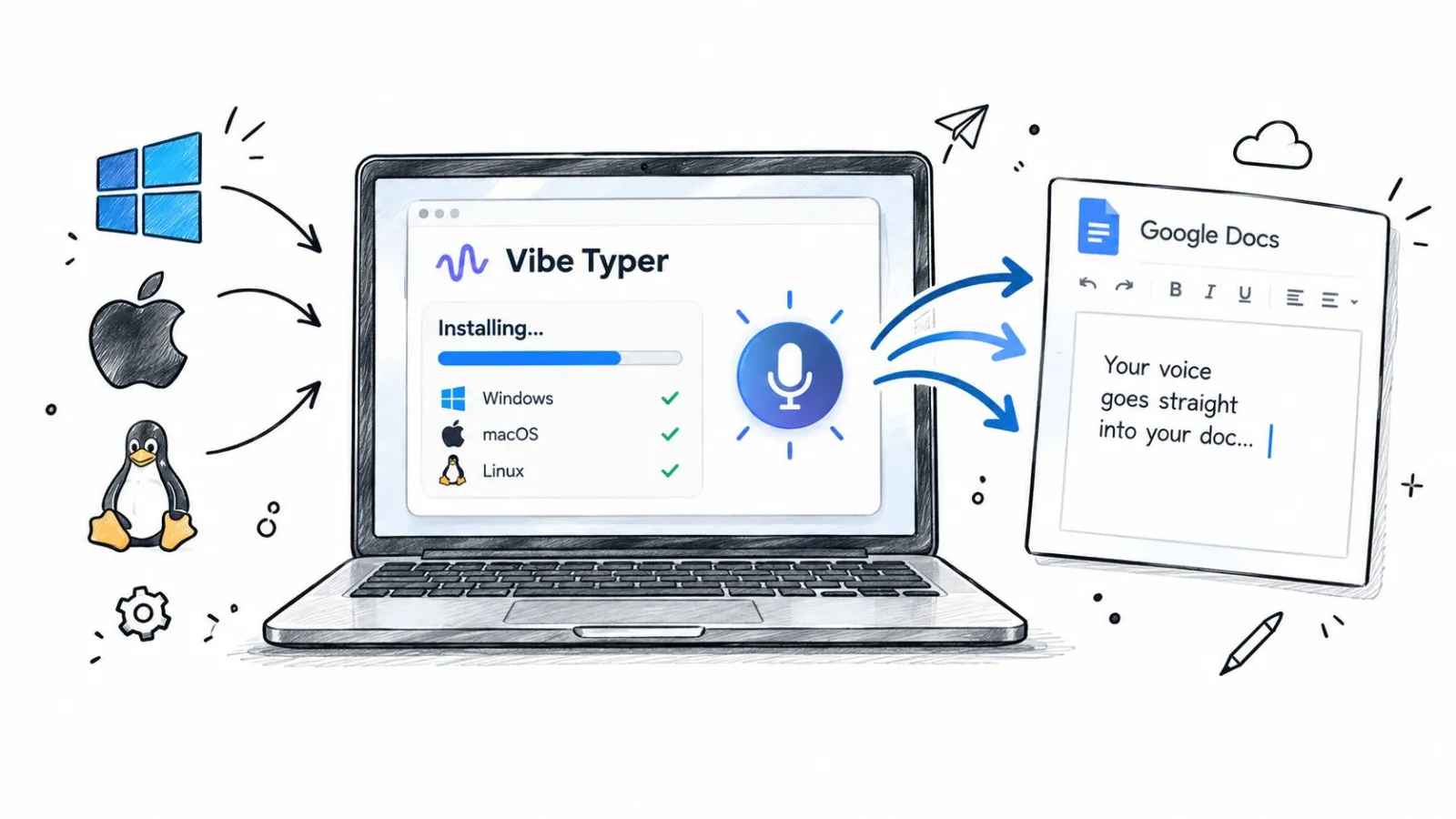
Here's what you get in Docs:
- Your microphone: You pick which microphone it uses. Our guide to microphones for dictation compares ten.
- One hotkey: Press it to start and again to stop, from any app. You pick the hotkey in its settings, so you can choose one that doesn't clash with your browser.
- Text at your cursor: Words land wherever you click in the Doc.
- Languages and names: 99 languages with automatic language detection, plus a custom dictionary that keeps names, product terms and specialist words right.
- Cleanup you can check: Magic Formatter is on by default. Once you stop talking, it removes filler, applies self-corrections, and sets punctuation, paragraphs and lists. History shows a diff of every change.
The important distinction is that the text arrives at the active cursor, with no browser widget to trap it. That makes the same workflow available in Docs, messages, editors, and other text fields. App-specific overrides can help when plain text is safer in a terminal or code editor than rich formatting.
Docs dictation leaves the cleanup to you. Vibe Typer suits longer drafting, typing into any app and a consistent cleanup pass. The broader Vibe Typer feature set documents the available controls and app behavior.
Before considering the setup stable, check these items:
- Permissions: The operating system and the app can access the selected microphone.
- Shortcut conflicts: The chosen hotkey doesn't trigger another utility.
- Cursor placement: The correct Google Doc and insertion point are active.
- Latency behavior: Test both a short sentence and a longer paragraph.
- Privacy: The tool's audio handling fits how sensitive the draft is. With Vibe Typer, audio is processed in memory, with no recordings or transcripts on our servers.
- Formatting expectations: Verify headings, lists, and code-related text in the applications where you'll use them.
Troubleshooting Checklist and Picking the Right Path
Use the symptom to choose the fix. Repeating the same browser setting won't solve a document-format problem.
- Grey microphone icon: Recheck site permission and the selected input at
chrome://settings/content/microphone. Reload Docs after changing access. - Session stops after screen sleep: Wake the system, refocus the document, and start a new listening session. Test power and sleep settings if this happens repeatedly.
- Browser mismatch: Try a supported desktop browser and update it before diagnosing recognition. Managed devices may also apply policies that block microphone access.
- Language option missing: Confirm that the intended language or regional variant is available in the selector and that the document is using the correct input choice.
- Extension interference: Open a clean browser profile or temporarily disable extensions that capture audio, modify pages, or manage shortcuts.
- Offline or slow transcription: Restore the connection for native Docs dictation, then test again.
- Wrong file behavior: Test in a native Google Doc, since an opened office-format file may behave differently.
For more targeted audio diagnosis, use the Vibe Typer audio input troubleshooting guide. It's especially relevant when the microphone works in one application but not another.
Match the tool to the document
Choose a dedicated voice layer like Vibe Typer when you need text in several applications, work on Linux, want configurable cleanup, or need a more explicit privacy and insertion model. For technical writing, test your own jargon and names before you trust any accuracy claim. For heavily formatted documents, use voice for drafting and conventional controls for final layout.
Voice typing is a workflow decision shaped by browser access, document type, speech patterns, privacy requirements, formatting demands, and the applications you use each day.
Vibe Typer provides system-wide voice typing for Linux, Windows, and macOS, with configurable hotkeys, app-aware text insertion, custom vocabulary, and cleanup features for Google Docs workflows. Visit Vibe Typer to see whether a dedicated voice layer fits the way you draft, edit, and move text across your apps.
Try Vibe Typer free
Voice typing that works in every app on Linux, Windows, Mac, iPhone and Android. Free to start, no card needed.
Download free