Voice Input for Miro Boards: How to Add Dictation to Your Whiteboards

Written by Futsy, founder at Vibe Typer

During workshops and brainstorming, the faster you capture ideas the better. In the official docs checked for this article, we did not find a built-in Miro voice typing workflow for sticky notes or comments. Talktrack records walkthroughs, but Vibe Typer turns speech into text after you stop.
The gap: no built-in dictation in Miro
Miro has plenty of visual tools, but there is no mic icon to speak text into a sticky or comment. That slows you down when ideas are coming quickly.
Add system-wide voice typing with Vibe Typer
Vibe Typer lets you dictate into any text field on your computer. Press your hotkey, talk, and your words appear in the focused text area, including Miro sticky notes, shapes, and comments. You can also select any text on the board and ask Vibe Typer to rewrite it based on your instruction.
Dictating sticky notes
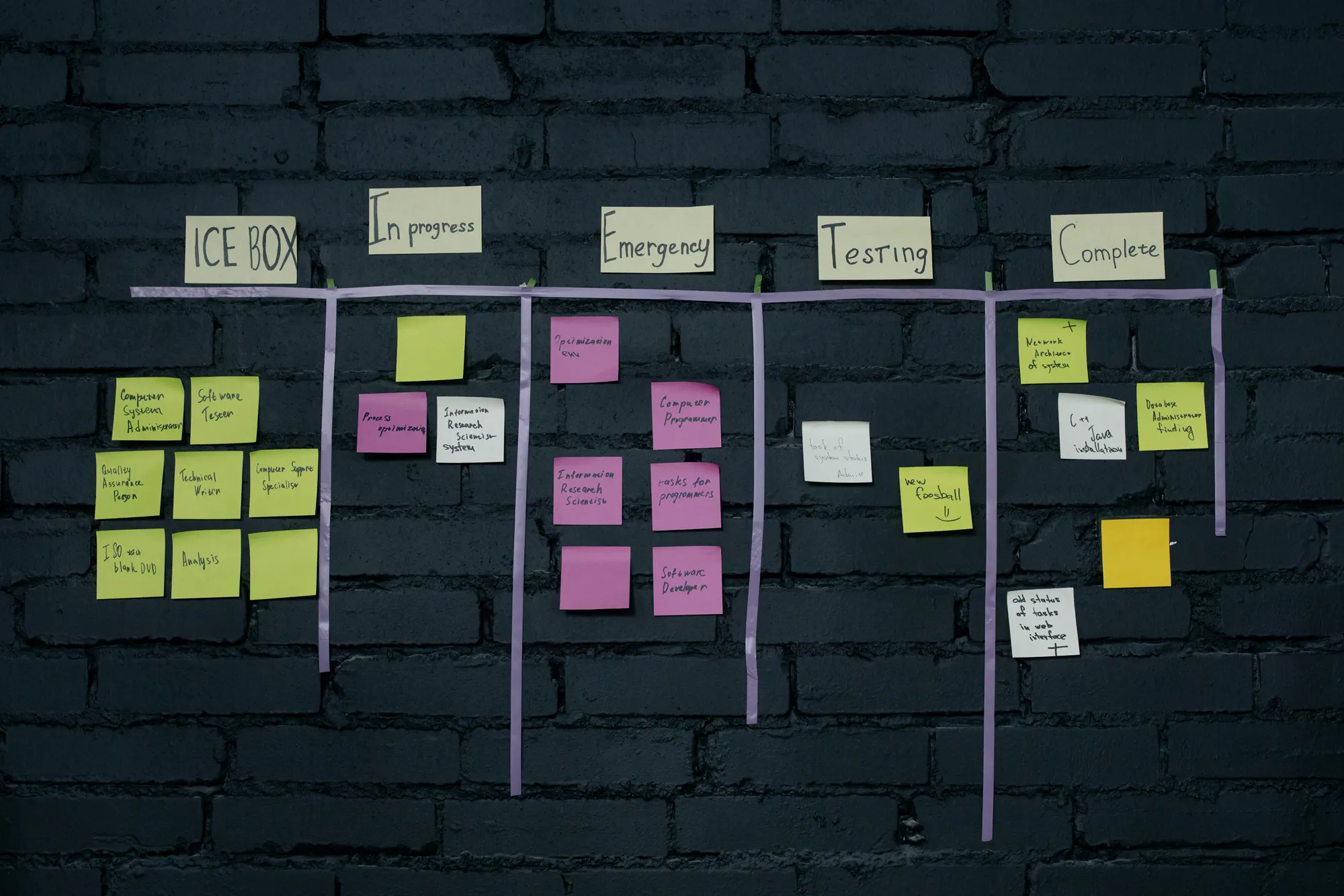
Vibe Typer works on your Miro board on Linux, Windows and macOS. Create a sticky, click into it, press your shortcut and talk, and the text goes into the note when you press it again. Just speak normally, with no punctuation or commands to say. If a note needs polish, select it and ask Vibe Typer to shorten it and keep the verbs.
Team tips for workshops
- Assign one facilitator to type or dictate while others ideate.
- Use comments for longer thoughts, then condense with Vibe Typer's rewrite.
- Keep each sticky short. Split long items across several notes.
Other tools in this series
Also see: Airtable | Smartsheet | Basecamp | Confluence | Jira | HubSpot | Zendesk | Coda.
Vibe Typer works in any app where you can type, including Miro. Try it free on Linux, Windows, or macOS at vibetyper.com.
Try Vibe Typer free
Voice typing that works in every app on Linux, Windows, Mac, iPhone and Android. Free to start, no card needed.
Download free