Why dictation breaks in terminals and IDEs, and how to fix it

Written by Futsy, founder at Vibe Typer
Most dictation software works fine until you push it.
You dictate a long prompt, a support reply, or a chunk of documentation, and then one of three things happens:
- Nothing appears in the target app.
- The formatting is a mess.
- It works in one part of your IDE, but breaks in another.
Your microphone is usually fine. The trouble is the insertion method.
Vibe Typer solves this with its paste settings, so you can choose how text is inserted per application.
The real problem: "Works everywhere" is harder than it sounds
On desktop, "inserting text" is not one thing.
Different apps accept text in different ways:
- Some apps expect a normal clipboard paste.
- Some apps strip formatting only when you use a special paste shortcut.
- Some apps block pasting entirely in certain contexts.
- Some apps behave differently depending on which sub-window is focused.
That last point is what makes IDEs tricky.
The mixed-context issue in Cursor, IDEs, and embedded terminals
Apps like Cursor often contain multiple surfaces:
- A code editor
- A chat or prompt input
- A markdown file preview or rich editor
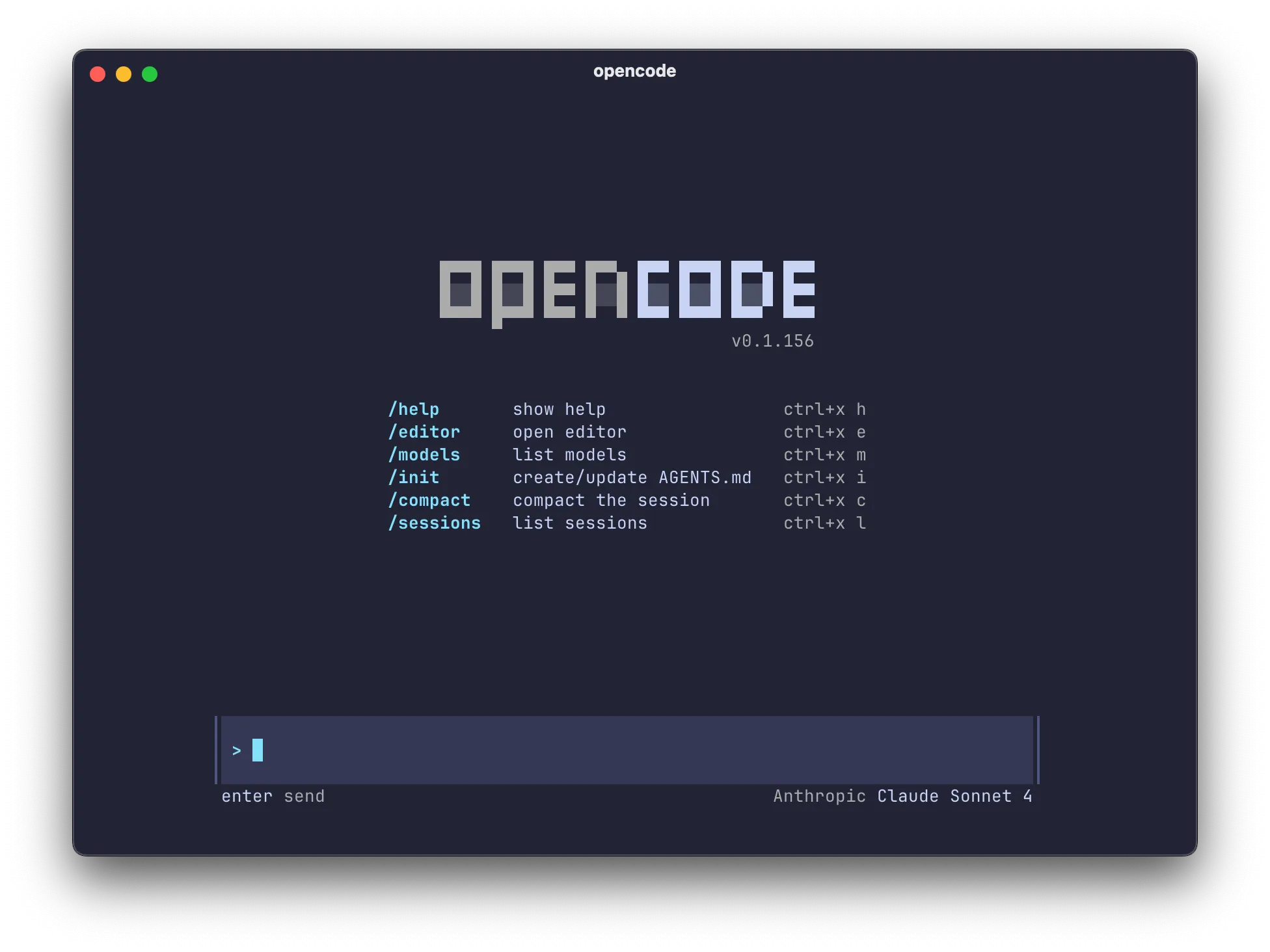
- An embedded terminal
Each surface can respond differently to pasting.
A rich text paste can inject odd spacing, bullets, or formatting into a markdown editor. A plain text paste might be perfect there, but the terminal might still behave differently. A typing simulation can be the most consistent across all those surfaces.
That is why a single global "paste mode" is not enough.
The four paste modes and when to use each
Vibe Typer offers four paste modes. The best one depends on the app you are targeting and what kind of field is focused.
1) Automatic, the default
Use this unless an app needs something else. It is the default on every platform.
It pastes the right way for each app, and terminals automatically get their paste shortcut.
2) Plain text
Use this when you want maximum predictability.
Best for:
- Terminals
- Markdown editors
- Anything where formatting is more harm than help
It pastes without formatting, so your editor does not inherit weird styles or invisible characters.
3) Paste
Use this when the app handles normal paste well.
Best for:
- Email clients
- Docs editors
- Chat apps
It uses the standard paste shortcut in every app: Ctrl + V, or Command + V on Mac.
4) Type, for maximum compatibility
Use this when paste shortcuts are flaky or blocked.
Best for:
- Apps that do not accept paste reliably
- Mixed-context apps where different panes behave differently
- Remote desktop sessions
- Legacy apps
The tradeoff is speed. It can be slower than a clipboard paste, but it works in far more places.
Recommended presets to start from
If you are not sure where to start, these presets work well for most people.
Terminal-first setup
- Terminal apps: Plain text
- IDEs you use mostly for coding: Automatic, the default
- Email and docs: Paste
IDE power user setup, Cursor-style
If you spend all day inside a single IDE that includes a terminal, this is often the easiest:
- Cursor or VS Code: Automatic, the default. It picks the paste shortcut for you: on Linux,
Shift + Insert, which pastes text the same way across the editor, chat box, markdown panes, and embedded terminal. - If one surface still misbehaves: set that IDE to Type.
"Just make it work" setup
- Any app that fails to accept paste: Type
Dictate once, paste correctly everywhere
Once it is configured:
- Set per-app overrides for core apps like your terminal, IDE and email under Settings > Paste.
- Use voice typing to produce a rough draft.
- If you are writing in markdown, use Plain text. For code, stick to Automatic or Type.
- If you are writing an email, leave that app on Automatic or set it to Paste.
After that, dictation becomes reliable. You stop re-dictating the same text because the paste failed.
Troubleshooting: when text shows in history but not in your app
If you can see the text in Vibe Typer's history but nothing appears where you're typing, try this checklist:
-
Switch the insertion method for that app
- If you are on Paste, try Plain text.
- If paste does not work at all, try Type.
-
Click directly into the target field Some apps lose focus easily, especially IDE panes.
-
Test in a different surface of the same app For example, test inside Cursor chat input, then in the editor, then in the terminal.
-
Use Type mode for mixed panes This is the fastest way to avoid "works here, fails there" behavior.
Why this matters for dictation software
Voice typing is only as good as the last step: getting your words into the tool you are using.
That is why Vibe Typer lets you set a paste mode per app. It is how dictation becomes dependable across terminals, IDEs, and everything else you write in.
Configure it once
If dictation has ever felt unreliable, the transcription is usually fine and the insertion method is to blame.
Set your paste modes once under Settings > Paste, match the insertion method to the app, and dictation works across the apps you use, which is what most dictation tools promise.
FAQ
Why does dictation paste weird formatting into markdown?
Markdown editors can interpret formatting from rich text pastes in unexpected ways. Plain text paste avoids that.
Why does dictation fail in terminals?
Many terminals handle paste differently, and formatting or special characters can cause issues. Plain text paste is usually the safest choice.
What is Type mode, and when should I use it?
Vibe Typer's Type mode inserts text as keystrokes. It's the mode for apps where paste is blocked, unreliable, or inconsistent across panes.
What is the best setup for Cursor?
Leave Vibe Typer on its default, Automatic, which picks Cursor's paste shortcut for you: on Linux, Shift + Insert, which pastes text correctly in the editor, chat and embedded terminal. If one surface still misbehaves, set Cursor to Type.
Can I set different paste methods per app?
Yes. That is what Vibe Typer's Per-app overrides under Settings > Paste are for. Configure your IDE, terminal, and email client separately so each one behaves correctly.
Try Vibe Typer free
Voice typing that works in every app on Linux, Windows, Mac, iPhone and Android. Free to start, no card needed.
Download free